Quick Answer: Does Converting a Video to 4K Improve Quality?
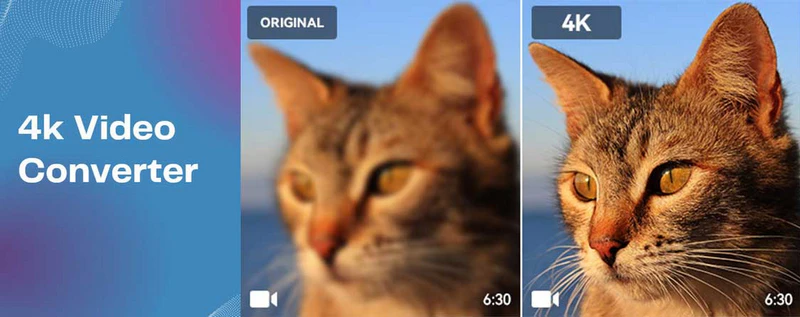
Converting a video to 4K does not always improve the quality. A standard video converter solely enlarges the pixels, while the picture may become blurry or even pixelated. If your primary goal is to improve the visual quality while converting a video to 4K, using an AI-powered video enhancement tool or software can reduce the compression artifacts and improve edges and textures, but the final output still depends on your source video.
| What You Need |
Recommended Approach |
Best Option |
What You Can Expect |
| Convert 8K or higher to 4K |
Standard 4K conversion |
Any Video Converter |
Downscale the resolution to 4K without AI processing |
| Convert a low-resolution video to 4K |
AI enhancement and upscaling (Super Resolution) |
Any Video Converter |
Increase resolution to 4K while improving visual details |
| Restore an old, blurry or black-and-white video |
AI restoration / recovery and colorization |
AVCLabs Video Enhancer AI |
Reduce blur and noise, recover faces and colorize (if necessary) |
| Upscale anime or animated footage |
Animation-focused AI upscaling |
Waifu2x-Extension-GUI |
Preserve line art while improving edge clarity and reducing noise, or even increase frame rate from 24 to 30 |
| Convert video to 4K online |
Cloud-based AI upscaling |
Topaz for Web |
Process the video in a browser, with usage determined by available credits |
Best Ways to Convert Video to 4K Based on Your Needs
The best way to convert a video to 4K depends on the source footage and the result you expect. Although many 4K video converter tools claim to upscale videos to 4K without quality loss, each has different strengths and ideal use cases. A general low-resolution video may only need a simple all-in-one workflow, while old, blurry, animated, or heavily compressed footage may require a dedicated video enhancer. Keep reading the comparison below to find the right tool for your needs.
1. Any Video Converter
Best for Converting, downloading, editing, and upscaling videos to 4K in one application
Any Video Converter is an all-in-one option for converting general 480p, 720p, or 1080p footage to 4K with improved visual quality. Unlike dedicated AI upscalers that mainly focus on video enhancement, it brings video conversion, downloading, editing, generation, and AI enhancement into one application. Its built-in AI Video Enhancer works as a separate tool within the same program, allowing you to prepare, trim, enhance, and export a video without repeatedly switching between applications. This makes it a cost-effective choice for users who need both everyday video tools and occasional AI upscaling.
Best Use Cases for Converting Video to 4K with Any Video Converter
- Convert a low-quality video to another format and upscale it to 4K
- Rip and upscale a standard-definition DVD to 4K
- Download a video available only in 480p or 720p and upscale it to higher resolution
- Trim a clip from a long video and upscale only the section you need
- Upscale an AI-generated video to 4K for publishing or further editing
How to Convert Video to 4K with an All-in-One Workflow
In the following guide, we used a standard-definition DVD video as an example to demonstrate how Any Video Converter combines video extraction, AI upscaling, and further editing in one application.
Step 1
Extract the Standard-Definition DVD Video
Open the Format Convert tool and add your DVD source. Select an appropriate output format and retain the original resolution and frame rate during extraction. Avoid enlarging the video resolution at this stage, as the quality upscaling will be processed separately by the AI Video Enhancer.
Click Convert Now to extract the video from the DVD.
Step 2
Upscale the Extracted Video to 4K
After conversion, click  and select AI Video Enhancer. The extracted DVD video will be added directly to the enhancement tool, so you do not need to locate and import the file again.
Step 3
Enhance and Export the 4K Video
Click Enhance Now to start processing and exporting the video in 4K. Any Video Converter can use compatible GPU hardware to accelerate AI processing and reduce rendering time.
After enhancement, you can click again to send the 4K video to another tool for trimming, cropping, format conversion, or other processing.
2. AVCLabs Video Enhancer AI
Best for Old video restoration, face recovery, colorizing, stabilizing, and frame interpolation
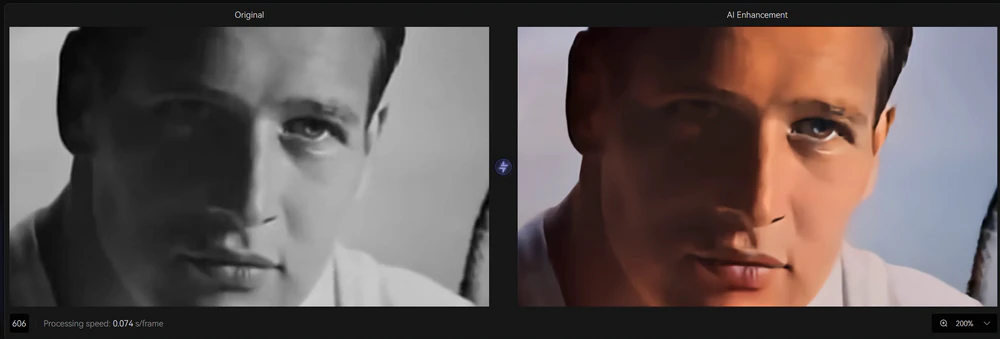
While Any Video Converter focuses on a simple all-in-one workflow, AVCLabs Video Enhancer AI provides more specialized and customized controls for restoring challenging footage. It supports combining multiple AI models in one task, allowing you to enhance overall clarity, refine faces, and colorize black-and-white footage simultaneously. This makes it especially suitable for old, blurry, noisy, or faded videos.
Key Features of AVCLabs Video Enhancer AI
- AI-based video upscaling and video enhancement tool
- The cutting-edge face recognition and face recovery models
- Stabilize the shaky footage while preserving the clarity
- Colorize the black-and-white footage into lifelike colors
- Automatically blur faces, license plates, background, etc
- NVIDIA CUDA/TensorRT, AMD AMF, and Intel QSV acceleration
How to Convert Old Videos to 4K with AVCLabs Video Enhancer AI
Step 1
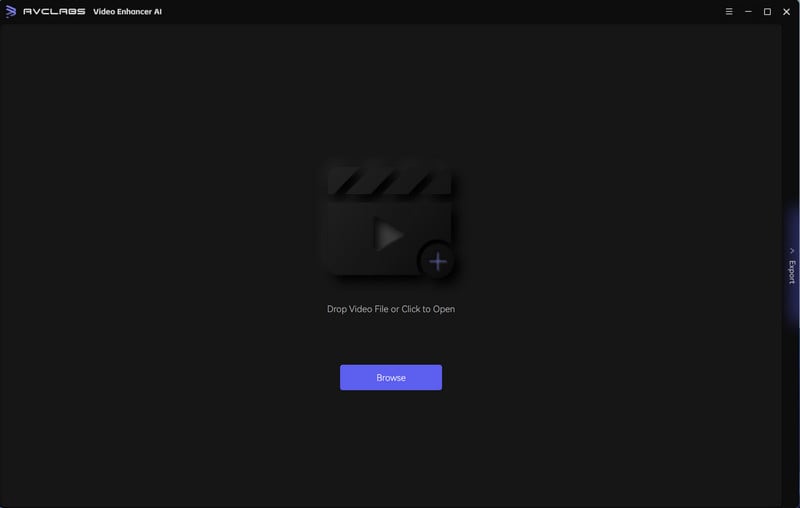
Open AVCLabs Video Enhancer AI on your Windows or Mac, then select Video Enhancer AI
Step 2
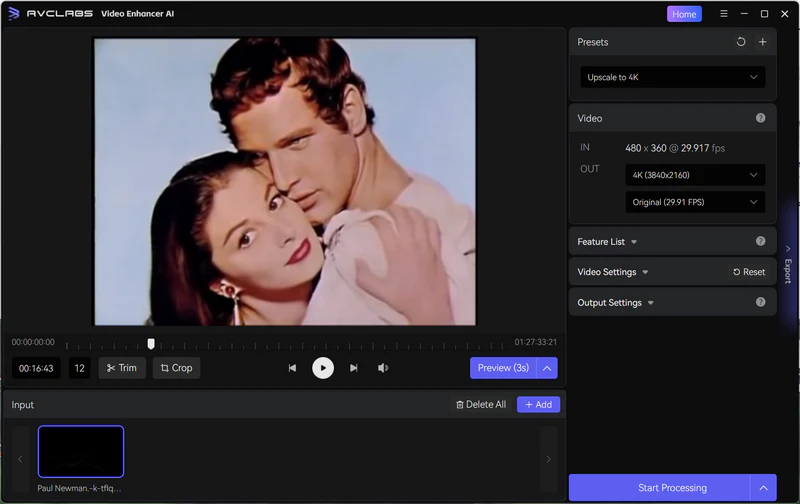
Import old movies or TV shows
Step 3
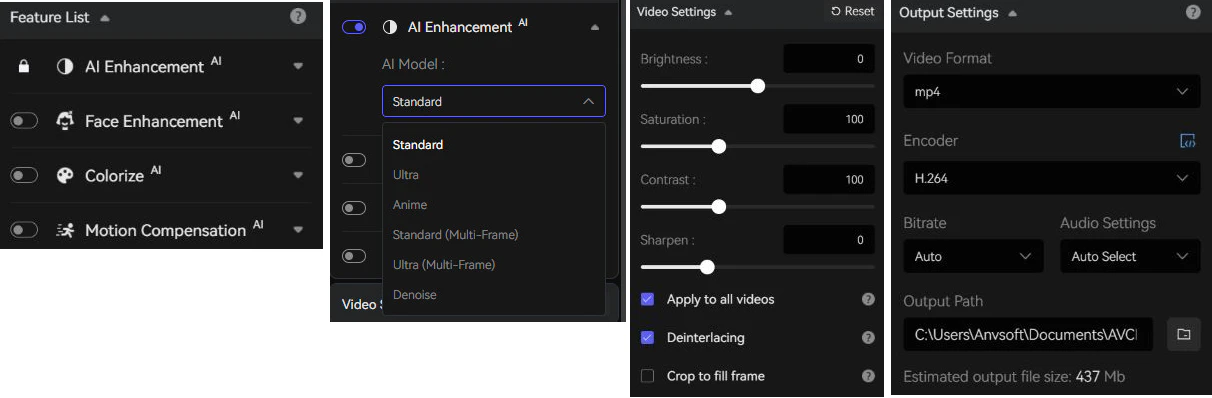
Choose the AI models and customize output settings
Unfold the Feature List to choose an AI model under AI Enhancement.
- Standard: Ideal for older videos with lower resolution.
- Ultra: Optimized for upscaling the HD footage to 4K or 8K quality.
- Anime: Specifically tailored for anime and animated content.
- Multi-Frame: Perfect for old films, sports footage, or any video with significant motion.
- Denoise: Focused on removing noise from low-light videos, high ISO camera footage, older films, drone captures, or surveillance videos.
Under Output Settings, set the output format as MP4, MKV, AVI, MOV, or WEBM.
Step 4
Preview and start processing
Click Preview to preview the comparison between the original and the enhancement result. If it is ideal for you, click Export to start rendering.
Result After 4K Upscaling, AI Colorization, and Face Enhancement
3. Waifu2x Extension GUI
Best for Upscale anime videos to 4K
Anime relies heavily on sharp line art, vibrant colors, and smooth motion, rather than natural textures like live-action footage. Converting anime videos to 4K must sharpen edges without introducing jagged lines or blurring, retain color fidelity and vibrancy without over-saturation or unnatural gradients, and transform the frame rate to a higher one to smooth motion.
Waifu2x - Extension-GUI is considered one of the best tools for converting anime videos to 4K, as it excels at preserving the line art, character outlines, and cel shading without introducing blur or artifacts.
How to Convert Anime Videos to 4K with Waifu2x-Extension-GUI
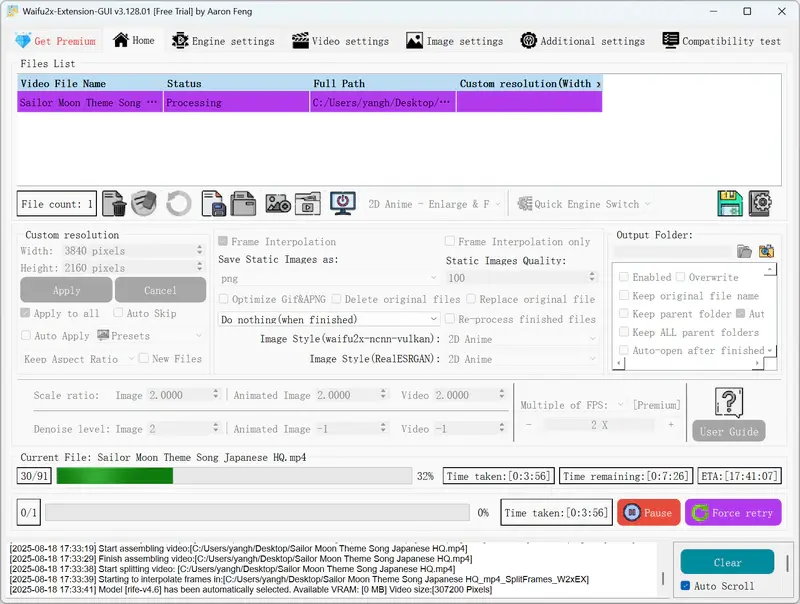
Step 1: Download Waifu2x-Extension-GUI from here, and then unzip this file. Please note that it is only for Windows 64-bit systems.
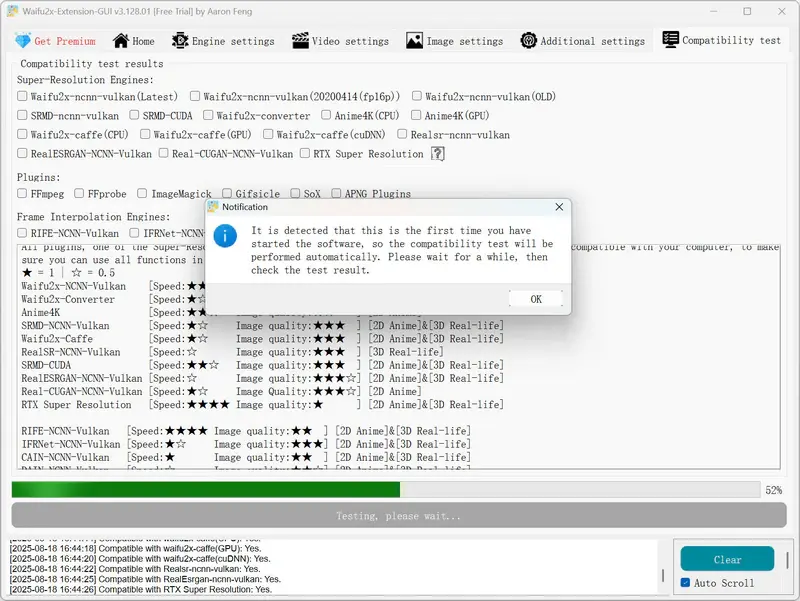
Step 2: Go to the waifu2x-extension-gui folder and launch Waifu2x-Extension-GUI.exe, then wait for the compatibility test and AI engine and plugin downloads to be complete.
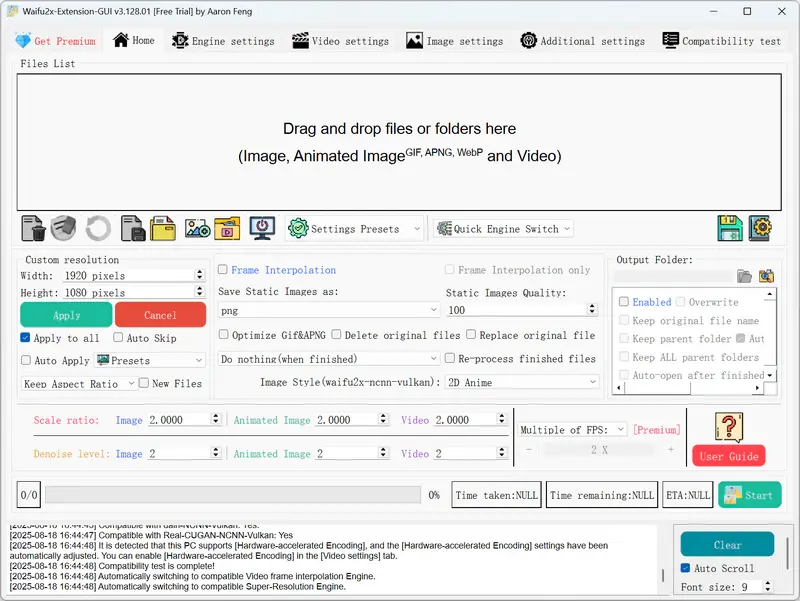
Step 3: Drag and drop to import the anime videos.
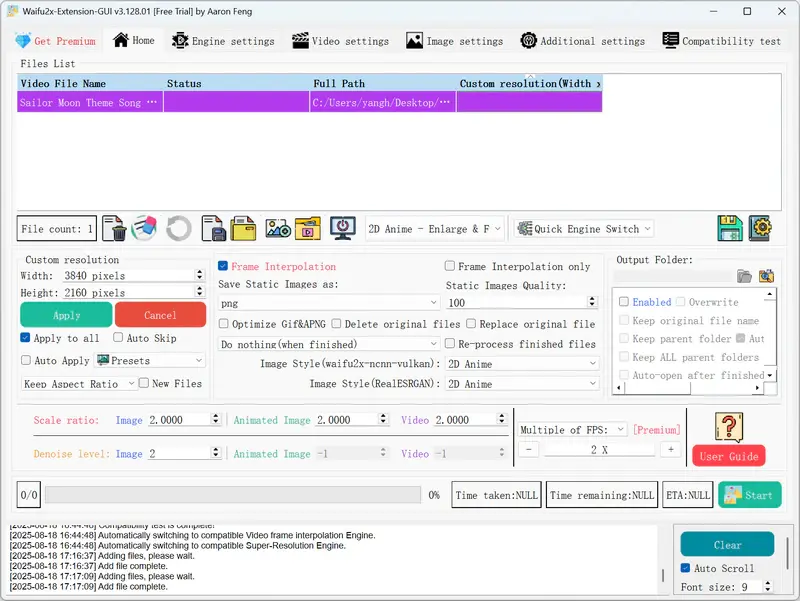
Step 4: Customize the output settings. Under the Settings Presets, simply select a preset for an anime video. Under the Custom resolution, you can adjust the output resolution to 3840x2160. If Video Frame Interpolation is enabled, you can switch between Multiple of FPS and Target FPS.
Step 5: Click the Start button to start converting the anime video to 4K.
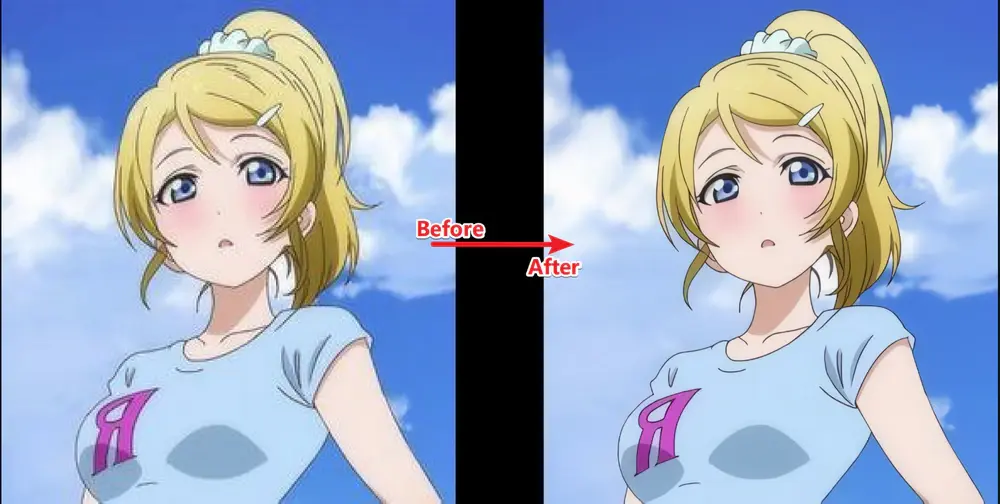
Result after Converting Anime to 4K
4. Topaz for Web
Best for Upscaling video to 4K online
Most 4K video converter software comes with strict hardware requirements. They often demand high-performance graphics cards and processors for smooth and fast rendering, and typically only run on desktops or laptops. But what if your computer is not powerful enough? Or what if you prefer converting videos directly on your phone or tablet?
The answer is an online 4K video converter. Topaz for Web is suitable if you want AI video upscaling without installing desktop software. You can upload a video, select an enhancement workflow (processing model and output resolution), and wait for the rendering in the cloud.
How to Convert Video to 4K Online with Topaz for Web
Step 1: Go to the web app and click Upload to select a video to be converted to 4K.
Step 2: Choose the 4K resolution and your preferred AI processing model. This online 4K video converter does not impose a fixed video-length limit, but video rendering consumes credits, which vary depending on the model, output resolution, frame rate, and video length.
Step 3: Start rendering and wait for the cloud to complete your task.
Tips: How to Get Better Results When Converting Video to 4K
No AI-powered 4K video converter is one-size-fits-all for any video. The result depends on the source quality, the selected enhancement settings, and the AI model being used. AI may reconstruct plausible details and improve overall clarity, but it cannot recover original information that is completely missing from severely damaged, heavily compressed, or extremely low-resolution footage. Here are some guidelines you can refer to when converting video to 4K with better quality.
- It's recommended to use the highest-quality source file available, instead of a previously converted or compressed copy. Re-encoding or compression may reduce the clarity and details, as the source contains very limited visual information.
- Don't upscale extremely low-quality or heavily compressed footage directly to 4K. For example, upscaling a 320p video to 4K can produce blurry details or noticeable AI artifacts.
- Avoid excessive sharpening and noise reduction, which can create halos, unnatural edges, or an overly smooth appearance.
- Preview before processing, especially details like faces, textures, fur, and motion consistency.
- Confirm that your computer has a dedicated GPU with enough GPU VRAM; otherwise, use the online 4K video converter.
- If your GPU has less than 16 GB of VRAM, avoid running multiple AI models simultaneously, as this may cause the processing task to fail.
- Enable frame interpolation only when it is needed, as it just increases processing time and may introduce motion artifacts or unnatural frames.
FAQs about 4K Video Converter
Can I convert a video to 4K online for free?
Yes, but most free online 4K converters offer limited credits for a trial. The free trial may restrict the video length, file size, output resolution, AI models, watermarks, and the number of exports. AVC.AI provides limited trial credits, and eligible users can contact its support team to request bonus credits for processing a complete video or more videos.
Can a 720p video be converted to 4K?
Yes, you can convert a 720p video to 4K using either a standard video converter or an AI video upscaler. A standard converter enlarges the frame from 720p to 4K but cannot keep original quality and details. AI upscaling may produce a clearer and crisper result by sharpening edges, reconstructing plausible textures, and reducing compression artifacts.
How do I make a 1080p video into 4K?
Yes, a 1080p video can be converted to 4K. A standard converter can enlarge the video to 3840 x 2160, but increasing the resolution alone does not improve quality. If you want to improve the visual quality while upscaling, an AI video upscaler can enhance details and overall clarity for a better 4K viewing experience.
Does converting 1080p to 4K improve quality?
Increasing the resolution alone does not add details that do not exist in the source, but produce blurriness or even pixelation. Converting 1080p to 4K with an AI video enhancer can improve overall quality.
How can I convert old videos to 4K resolution?
Restore the old videos before or while upscaling to 4K. You can apply settings, filters, or fine-tuning, such as noise reduction, sharpening, deblurring, face recovery & enhancement, colorization, and stabilization when needed, then export the restored video to 4K. Before exporting, preview a short section, as aggressive restoration can introduce unnatural detail.
Conclusion
For converting 480p, 720p, or 1080p videos to 4K with an all-in-one workflow, Any Video Converter is a good starting point. AVCLabs Video Enhancer AI provides more specialized restoration controls for old videos; Waifu2x-Extension-GUI is designed around anime footage, and Topaz for Web offers browser-based cloud processing.
Convert and enhance low-resolution videos to 4K, then edit and export them in the format you need.