"Any Video Converter is an amazing downloading and conversion toolkit so comprehensive."

"Any Video Converter takes videos from your computer or downloaded from the Internet and converts them into just about any format you would like."

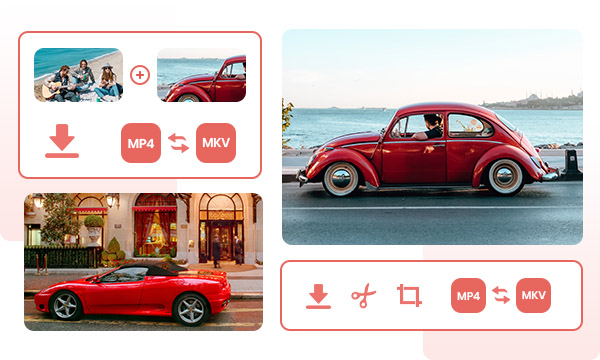
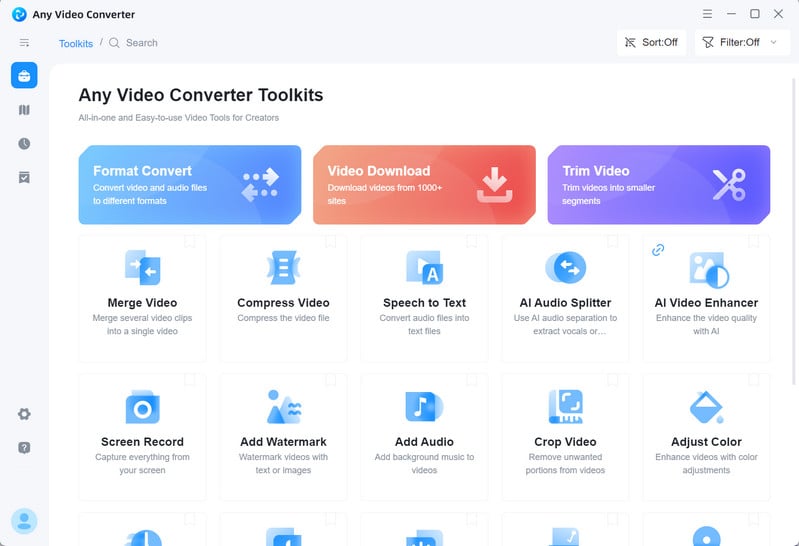
Comprehensive toolbox with multiple single tools: This free video converter integrates features including video conversion, video clipping, video cropping, video merging, audio filter, video downloading, and more.
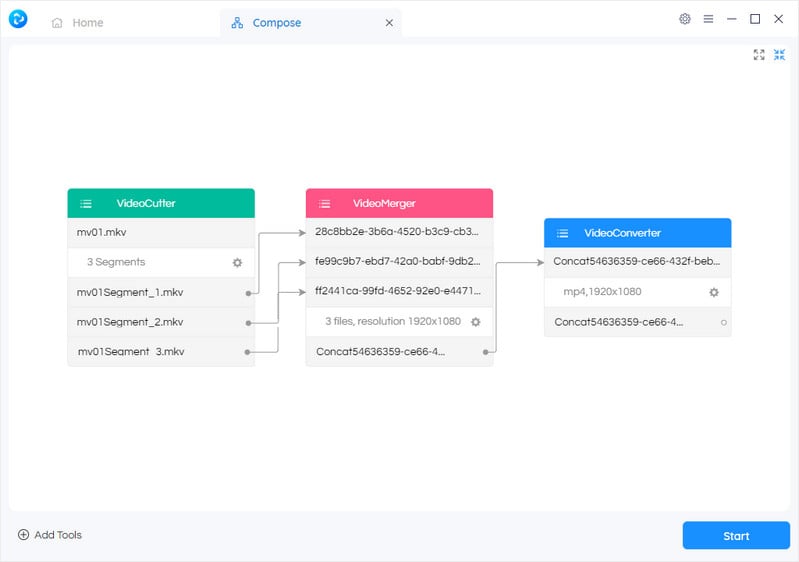
Comprehensive toolbox with custom workflow tools: Combine single tools in a customized way to complete your video processing tasks seamlessly. It delivers you the best one-stop video processing solution.
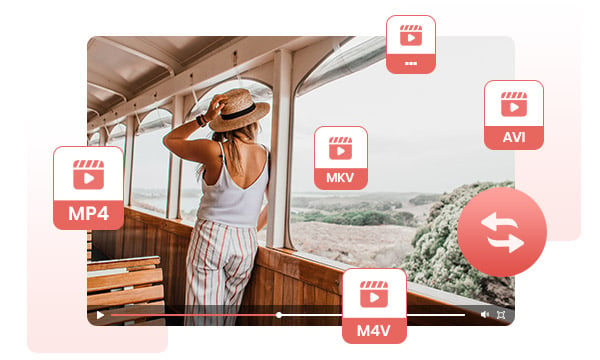
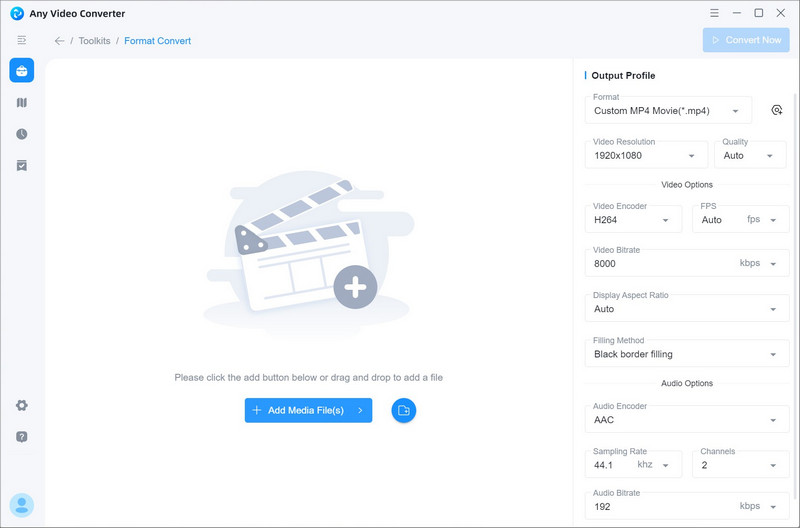
Convert video to popular video formats freely: Any Video Converter supports all popular video formats and converts your videos to different video formats including MP4, MOV, MKV, M2TS, M4V, MPEG, AVI, WMV, ASF, OGV, WEBM, and more.
More customized options for your videos: It supports converting videos to customized percent (50%, 100%, 200%, and more) or resolution (480p, 720p, 1080p, 4K, and more); It supports encoding videos into x264, x265, h263p, xvid, mpeg, wmv, and more.
Tips: Try AI Video Upscaler to upscale video to 4K without losing quality.
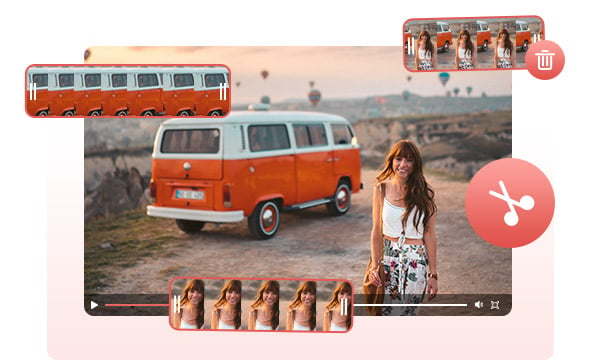
Cut or trim video to delete unwanted lengths: You can move the marker to select the beginning and end points of your video, or input the start and end time to delete unwanted lengths.
Clip to split a video into multiple segments: You can add new segments to split a video into multiple segments. After splitting, you can add the segments to the assembly and continue to combine the segments or convert segments to any other formats.
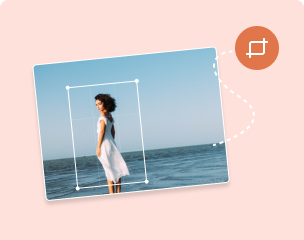
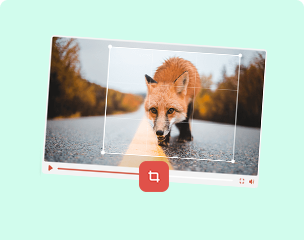
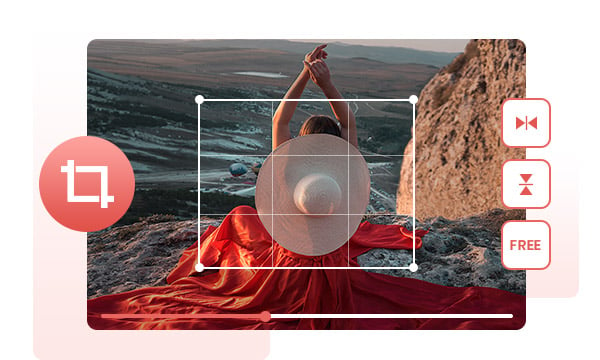
Crop video to delete unwanted portions: It lets you select the crop area or adjust the width and height to crop and resize the video, so as to remove unwanted portions from the video and highlight a particular element.
Flip and rotate video for free: It provides and simple way to rotate a video vertically or horizontally to change the orientation of your video.
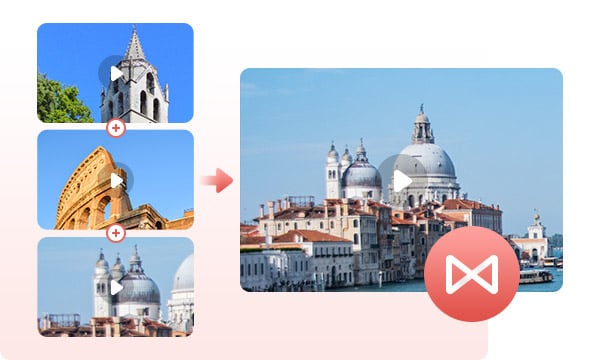
Merge multiple clips into one video: If you have more than one video clip (like YouTube compilations, movie trailers, presentations, or highlight reels in a movie or MV) and want to combine them into one video, no longer downloading a heavy professional video editor, you can use Any Video Converter to merge videos in a few seconds.
Add motion/transitions in between clips: Add transitions to your video clips to showcase the scene changes, or seamlessly join separate shots.
Adjust audio volume and loudness: A free volume changer allows you to increase or decrease the volume of any audio file. Make your audio louder or quieter.
Add special effects to audio: It is a free audio editor that comes with a large collection of audio special effects to make your audio sound stylish and cooler than ever.
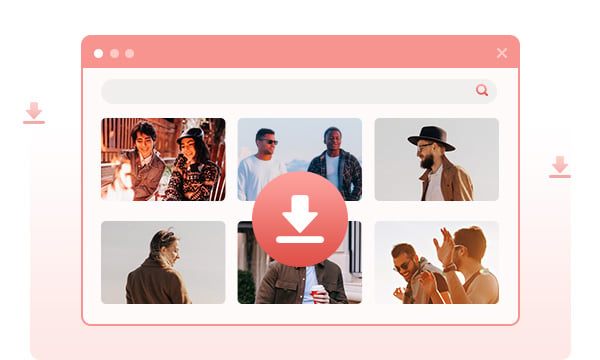
To download your favorite videos in MP4 simply, you can copy the address of the video link and paste it into the list box, or you can directly drag the video from Chrome or Firefox to the box.
Warning: You can use our converter to download your own personal videos, as well as public domain and non-copyrighted videos; You can't legally convert and download copyrighted videos without the owner's permission.
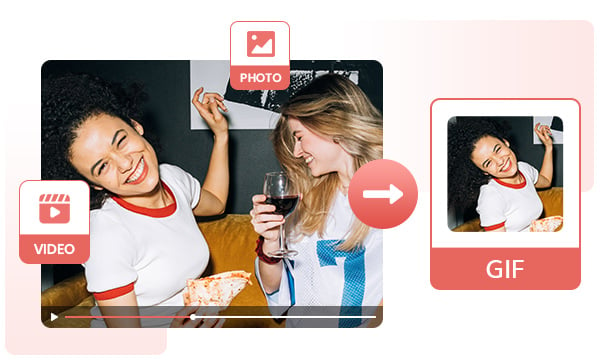
Animated GIFs are trending in everyday conversations and marketing because GIF's fun elements make your content stand out. If you don't want to spend a considerable amount of your effort to create an animated GIF, Any Video Converter's free animated GIF maker can help you out.
This free GIF Maker allows you to create high-quality animated gifs without any watermarks. It supports creating GIFs from video clip and images.
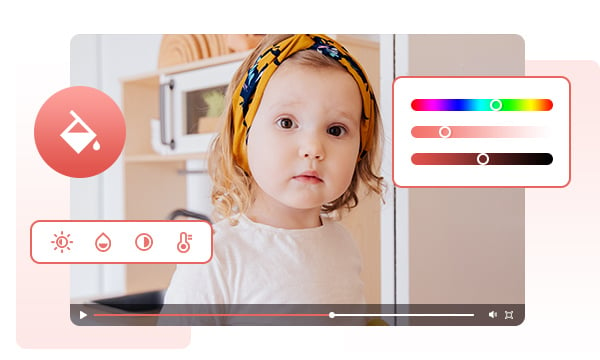
Sometimes the imperfect shooting conditions may end up with the videos in incorrect color. To bring the footage in the right tone and color, the color adjustment tool can help you adjust the level of brightness, saturation, contrast, white balance, color temperature, hue, sharpness, and graininess.

It delivers both single and workflow toolkits for video downloading, conversion, and editing.

Many single tools, such as video converter, video clipper, video merger, and more.

It is a freeware that allows you to download, convert, and edit video, no ads, no malware.
Step 1. Run Any Video Converter
Launch Any Video Converter, you will enter the main interface of Any Video Converter 8.0 as shown on the left.
Step 2. Select Any Single Tool You Want
Step 3. Add Custom Workflow Tool
| Any Video Converter | Free | Pro. |
|---|---|---|
Convert between Video and Audio FormatsVideo to video, video to audio conversion. |

|
|
Compress videoReduce the file size of a video |
|
|
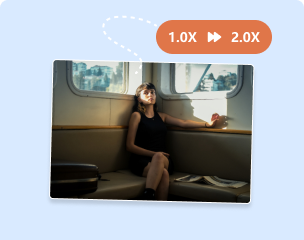
Change video speedEasily speed up or slow down a video |
|
|
Download videos in high quality
|
|
|
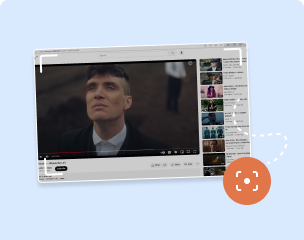
Record video screen and webcam in HD quality
|
|
|
Split a video into 3+ segmentsSplit a large video into three or more segments or remove the unwanted part. |
|
|
Merge 5+ segments into one videoMerge more than 5 segments into a single video clip. |
|
|
More than 30 seconds of length for GIF conversionMore than 30 seconds of length for video-to-GIF and image-to-GIF conversion. |
|
|
Add 3+ watermarksAdd more than 3 watermarks to a single video file. |
|
|
Price |
Free | $9.95 |
Try |
Free Download | Upgrade Now |
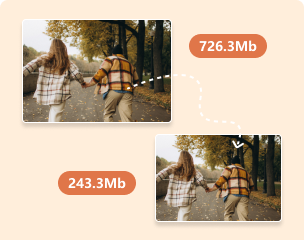
Compress the video to a desired file size or specific percentage.
Trim and split a video into segments and remove unwanted sections.
Merge multiple video clips into one with transitions between them.
Crop video to remove unwanted area or fit specific aspect ratio
Record everything you want on your desktop screen with HQ quality.
Speed up and slow down the video speed according to your preferences.
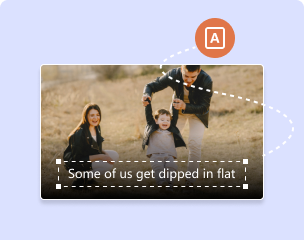
Add .ass or .srt subtitles to the video with one click.
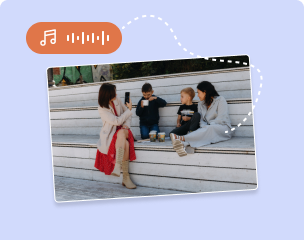
Add background music to your video and edit it with sound effects.
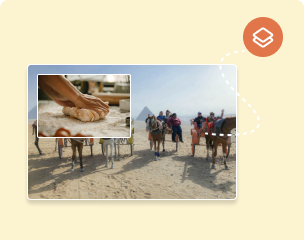
Create stunning picture-in-picture or video-on-video effects.
Easily create animated GIFs from images or videos.
Extract or remove video tracks, subtitles, and audio tracks.
Easily record and capture your webcam with HD quality.
Single Tools + Custom Workflow Tools; Download, Convert, and Edit Video Seamlessly
 AVCLabs Video Enhancer AI
AI-based video enhancement software to upscale video from 480p to 1080p, 1080p to 4K, and up to 8K, and bring your old videos a new look.
 AVCLabs Video Blur AI
The best video blur app and face blur app to blur multiple moving faces or any part of a video (background, foreground, and any objects) with AI.
Joseph Prunk

Just downloaded your any video converter and it worked. With no ads, no viruses, and it was free. You guys did great job on your video downloader.
Charles Whaley
I’ve been using Any Video Converter for quite a few weeks now, and It’s become my favorite converter (usually MKV to MP4, but some URL downloading too).
Luke Macnaughton
I've been using free version of AVC for a while now - great bit of kit, really like it. As a software developer myself, I find it intuitive, nice UI, no gimmicks. thumbs up from me :-)